How to write image-to-video prompts that control motion
Turn a still image into an AI video with a motion-focused prompt. Try three copyable examples and learn when to supply first and last frames.
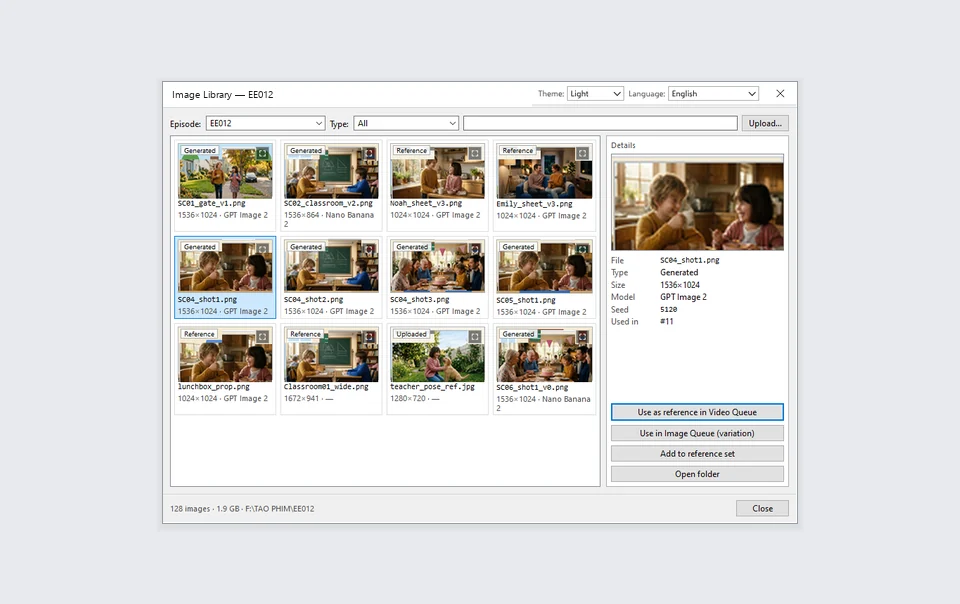
Choose a still that can support the action
Start with a sharp image framed for the motion you want. If a person needs to reach for a cup, leave room for the hand and show enough of the cup to make its shape clear. For a product shot, make the real label legible in the source image and leave space around the packaging. Choose the intended aspect ratio before you approve the still.
In image-to-video mode, the source image already sets the scene. Spend your prompt on the movement the viewer should see, the camera behavior, and the ending. Google documents this approach for Veo and Gemini Omni. Google Cloud video generation best practices.
Three motion prompts you can copy
Use one camera instruction and one main action per test. Add the constraints you’ll check when reviewing the clip. Here are three starting points for different kinds of input image.
- Product detail. “The camera slowly pushes toward the bottle. A narrow reflection travels across the glass. The bottle stays still and the front label remains in view. Hold on the label at the end.”
- Animated character. “Keep the camera fixed. The fox perks up one ear, then turns toward the doorway. Hold on the new pose. Keep the scarf color and collar shape consistent.”
- Place or environment. “The camera slides gently to the right as the curtain lifts in a light breeze. Keep the window frame straight. End with the chair centered.”
Add an end frame when the cut needs one
If the edit needs to land on an exact composition, test first-and-last-frame mode with a model that supports it. Pick an end image that can follow the first through a physically plausible move. Keep subject size, lighting, and camera angle close enough for the model to bridge the gap. Review the middle as well as the endpoints. Google Cloud first and last frame documentation.
Review the clip and change one variable
Play the clip at normal speed. Pause at the midpoint to inspect the label, face, or silhouette. If a combined move distorts the subject, render a simpler action using the same source still. Keep the approved image and prompt with the shot ID so you can repeat that setup across an episode. Scena Studio supports assigning a generation mode per shot. Explore video generation modes.