Six ways to turn a shot into video, across 13 video services & 35 models.
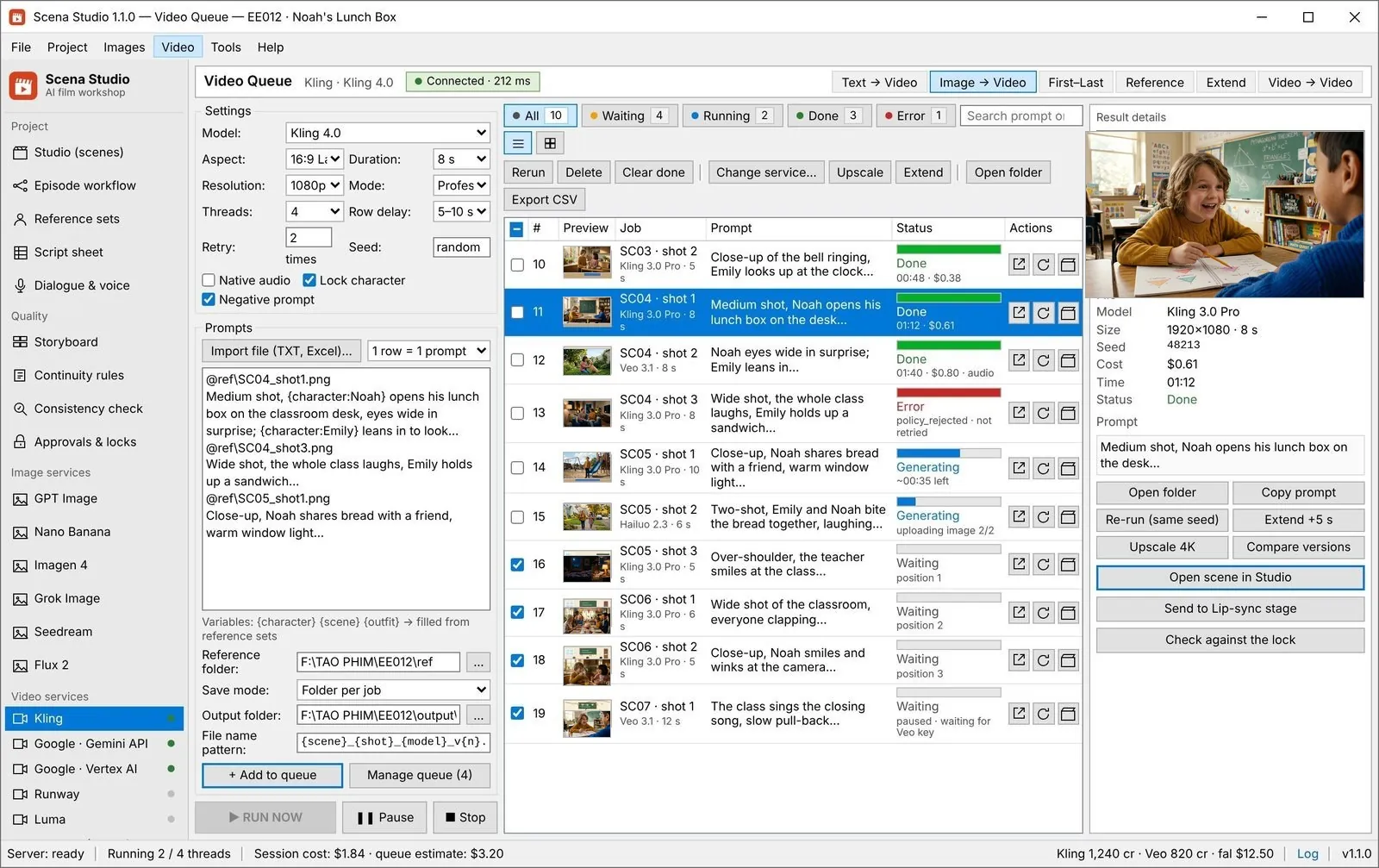
Each row of the script sheet becomes a job in the video queue, with its own model, aspect ratio, length and seed. Pick the mode that fits the shot instead of rewriting the prompt until it works.
In the app: Video → Video queue
What it does
The right mode for each shot
Text, image, first–last frame, reference, extend or video-to-video. A dialogue close-up and a crowd wide shot rarely want the same one.
Settings ride on the row
Model, aspect ratio, duration, resolution and seed are saved on each job, so a re-render months later comes out the same.
One queue, many services
Kling, Veo, Runway, Luma, MiniMax, Seedance and the rest sit behind one list. Move a job to another service without retyping it.
-
STEP 01
Import the shots
Import the script sheet or paste prompts. Each row becomes a job carrying its shot code, prompt and dialogue.
Video queue → Import file -
STEP 02
Pick a mode and a model
Choose text, image, first–last frame or reference mode for the selected rows, then the service and model.
Video queue → mode tabs, Model -
STEP 03
Set length, ratio and seed
Duration, aspect ratio, resolution and seed apply to the selected rows. Fix the seed on shots you may need to redo.
Video queue → Settings -
STEP 04
Run, then review
Press RUN NOW. Finished clips land in the episode folder under your naming pattern, ready for the consistency check.
Video queue → RUN NOW
Settings that matter
- Mode
- Text, image, first–last frame, reference, extend or video-to-video: what the service receives besides the prompt.
- Duration and aspect ratio
- Set per row. 16:9 for the episode, 9:16 for Shorts; the export makes the other ratios.
- Seed
- Fix it to render a shot the same way again; leave it random to get variations.
- Threads
- How many jobs run at once on each service, inside that service’s own rate limit.
Good to know
- The modes a model accepts change with each version; the queue offers only the modes the chosen model supports.
- Clips are rendered by the service you pick, on your key, at its price. Scena Studio does not host or resell generation.
- Lip-sync is a separate stage after the video, covered under lip-sync and export.
Seamless Short-Clip Auto-Stitching & Multi-Model Shot Routing
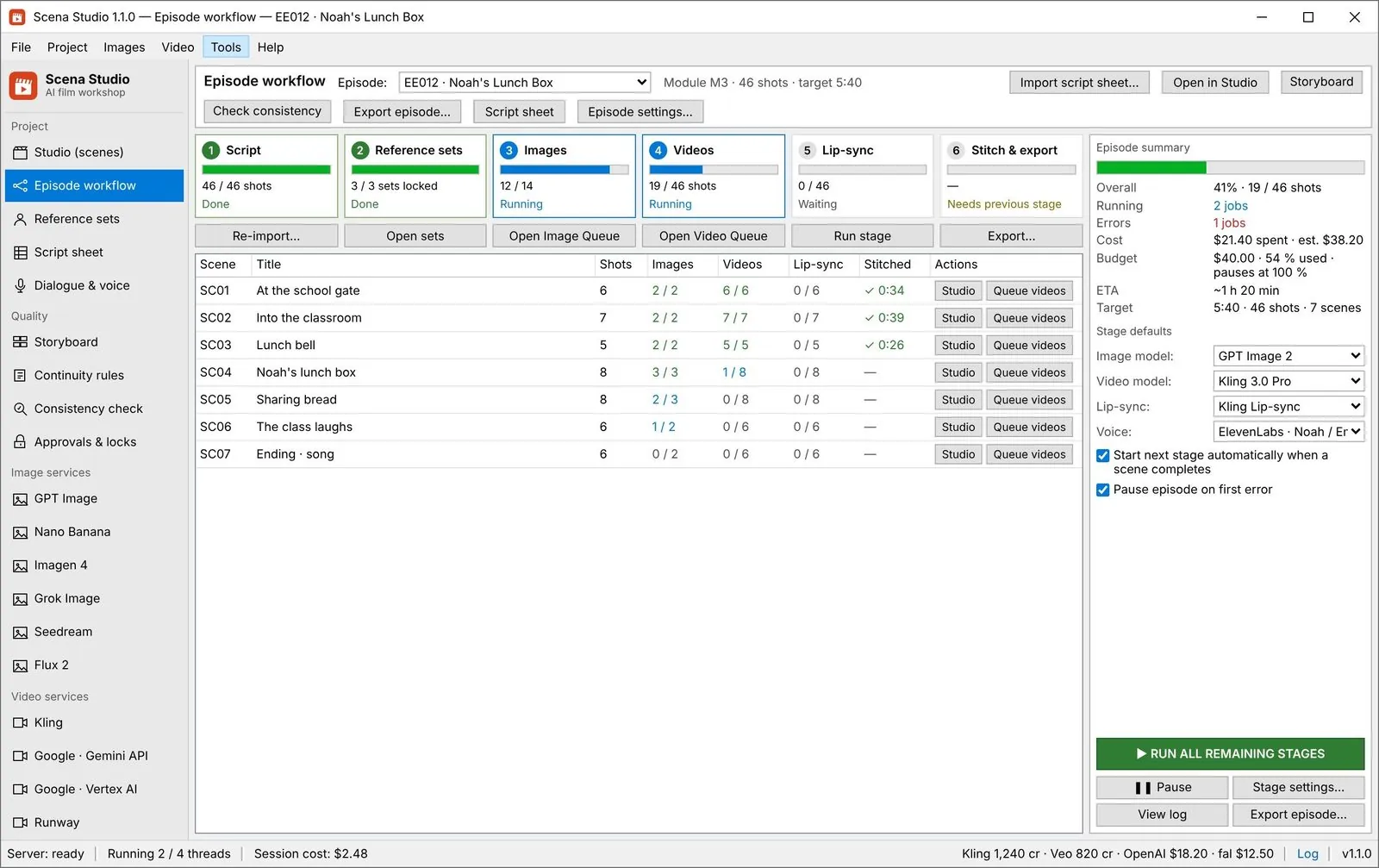
AI models generate 5 to 10 seconds per clip. If you prompt clips in isolation, characters morph and cuts jar the viewer. Scena Studio chains the exact final frame of Clip N (`frame_last.png`) into Clip N+1 alongside your persistent `{character:CODE}` lock, then auto-stitches the entire scene at 24fps with `-3dB` audio crossfades via local FFmpeg.


| Production Bottleneck | Standard Web Portal Workflow | How Scena Studio Desktop Solves It |
|---|---|---|
| Clip-to-Clip Continuity | Jump cuts & face morphing every 5 seconds | Auto Last-Frame → First-Frame handoff + `{character:CODE}` lock |
| Model Routing in One Timeline | Locked to 1 model per web subscription | Route Veo 3.1 (dialogue), Kling 4.0 (action) & Seedance 2.5 (2D/3D) per row |
| Episode Assembly | Manual download of 60 clips into external NLE | Built-in FFmpeg 24fps stitcher + loudness-normalized audio (-14 LUFS) |
| Monetization & TM Safety | Raw clips risk Content ID or Inauthentic flags | Pre-flight TM/Copyright scan + Human-Direction Audit Log exported |
Questions
Which video services are supported?
Thirteen active video services (35 models) built in: Kling (4.0, Omni O3, 3.0 Pro/Std), Google Vertex AI (Veo 3.1, Fast, Lite), Google Gemini API (Omni 1.1 Flash), Runway (Gen-4.5, Aleph 2.0, Gen-4 Turbo), Luma (Ray 3.2, Ray 3), MiniMax/Hailuo (H3, 2.3), Seedance (2.5, 2.0), Alibaba Wan (3.0, 2.7, 2.6), Alibaba HappyHorse (1.1), xAI Grok Imagine 1.5, Vidu (Q4, Q3), Pika 2.5, and LTX-2.5 Pro 4K — plus Sora 2 Pro via fal.ai, 4 gateways (fal.ai, WaveSpeed, Replicate, OpenRouter), and custom REST endpoints.
Can one episode use several services?
Yes. Each job has its own service, so a dialogue shot can go to one model and an action shot to another in the same run.
Do I need my own API keys?
Check whether a shared test key is enabled for your model in your build. If it is unavailable, use your own key or a supported gateway key. Your provider bills work run on your own key.