How to export and check SRT subtitles for AI video
Export UTF-8 SRT subtitles after editing, check the timing and line breaks, and prepare separate caption files for YouTube or Premiere.
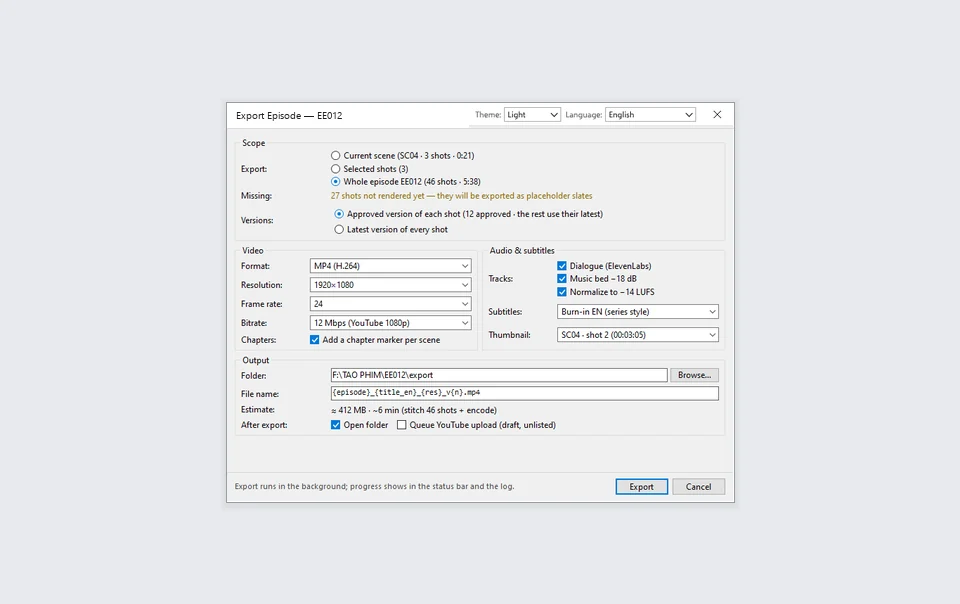
Start from the approved cut and audio
Work from the edited video with its final voice track. A generated line can run faster or slower than the script suggests, and edits can shift every cue after a cut. Listen to the finished audio while checking the transcript. Match the spoken words, confirm names and numbers, and add speaker labels or descriptions of meaningful sounds when the captions need them.
In Scena Studio, select the separate SRT option when exporting captions. A separate file lets a video player present subtitles as a selectable track. Burned-in captions are part of the picture. Choose those when you need text visible in the video itself. Scena Studio caption and export options.
Check the SRT structure
Each cue contains a number, a start and end timestamp, and the text. Leave a blank line between cues. Timestamps use hours, minutes, seconds, and milliseconds separated by a comma. Here is a two-cue example for a fictional tutorial.
1
00:00:00,800 --> 00:00:02,600
Slide the tray in until it clicks.

2
00:00:02,800 --> 00:00:04,900
Check that the two tabs line up.
Save as plain UTF-8, particularly if you use accented characters. YouTube accepts basic SRT and ignores styling markup in the file. YouTube supported caption file formats.
Watch for drift, overlap, and hard-to-read cues
- Check a line near the beginning, middle, and end. An offset that grows over time is a sign to compare the captions with the exact export timeline.
- Make sure each end time follows its start time. For a single caption track, check that consecutive cues leave the intended gap and don’t overlap.
- Break long lines at natural pauses and test the finished captions on a phone. Read them while watching the picture, as a viewer would.
- Recheck timing after a cut or a different language dub. Make a separate SRT for each final edit and language.
Hand off the video and subtitle track together
Use matching names, such as episode-02.mp4 and episode-02.en.srt. Upload the subtitle file to the corresponding language track in YouTube Studio. In Premiere, check the captions on the timeline before exporting either burned-in captions or a new SRT. Adobe Premiere captions overview.