Build an AI video shot list with a CSV template
Download a three-shot CSV example and learn how to turn a script into rows with stable shot IDs, prompts, dialogue and target durations.
Give each row one job
A usable shot list tells a second editor what to create, how long it should last in the cut, and how to tell whether it worked. Start with one visible action per row. A shot in which a cyclist puts a bottle in the holder is easier to generate and review than a single row covering the cyclist's entire morning.
Download the three-shot CSV template. Open it in a spreadsheet and make a copy for your project. The example follows a cyclist from packing a bottle to taking the first sip.
Map five columns before adding references
- Scene: A stable group such as
SC01. Rows in the same scene can share a location and lighting plan. - Shot: A unique ID such as
SH002. Use it in filenames and review notes so a new take does not change the identity of the shot. - Duration: The target length in seconds for the edit. If your model only offers preset lengths, generate a supported length and trim the useful section.
- Prompt: Describe one visible action and the camera. Add the approved image separately when using an image-to-video mode.
- Dialogue: The line that will be heard in this shot, or an empty cell. Keep narration and visual directions in their own fields.
Keep optional cast, outfit and location codes as production notes. Bind actual references after import if the tool does not map those extra columns.
Check the import with a three-row test
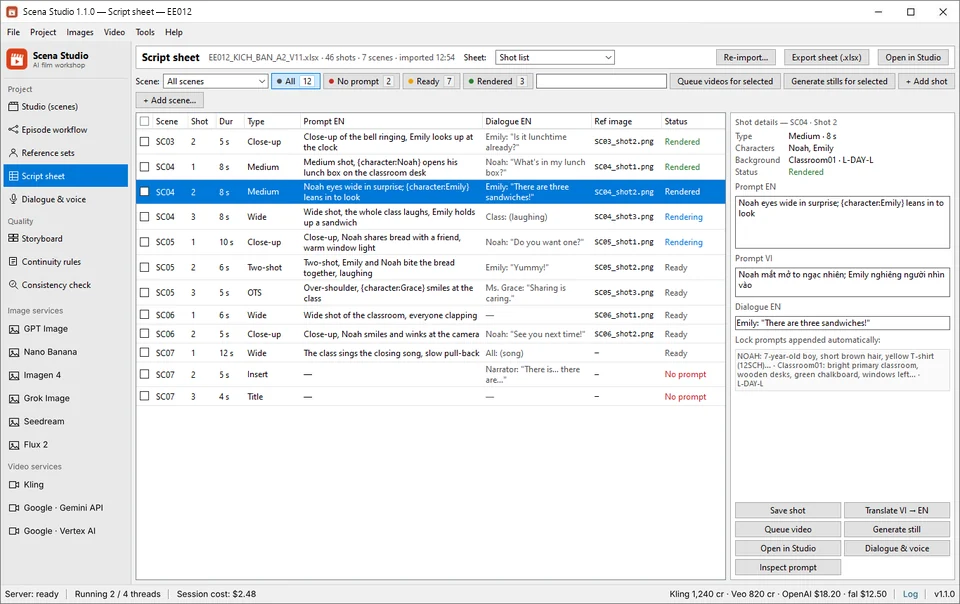
Save as UTF-8 CSV and retain the header row. Let your spreadsheet quote fields with commas and line breaks. In Scena Studio's script sheet workflow, map Scene, Shot, Duration, Prompt and Dialogue to the corresponding fields. Check the preview for row order, accented characters and any empty dialogue cells before importing the rest.
Read the first three shots in order. Each cut should reveal something new: setup, action, then result. Approve a still for the first shot and render a short test before you commit the full list to the queue. For the steps after import, see the script-to-video production workflow.